How to add your community to the tool pool
Invite people by email or with a join link and a poster, or let an AI assistant invite everyone on your list.
You need to be an admin of the pool for all three. If you started the pool, you already are. The buttons for the first two are on the pool's Invites page, which only admins can open. My Tool Pools
Invite people one at a time
- Open your pool and press Invites. It's in the row of buttons near the top, next to Members.
-
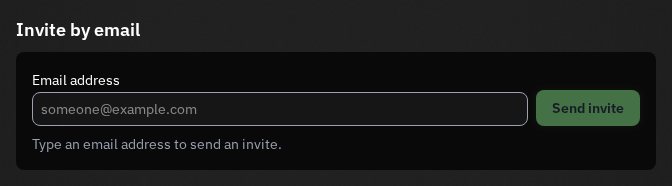
Type their email address under Invite by email. If they already have a ToolPool.Garden account with a confirmed email, the button says Add to pool, and they're in right away. Otherwise it says Send invite, and you can add their name so the email greets them by it.
 Open the full-size image
- They get an email with a link, and they're in the pool once they follow it and sign up. The pool's invites are listed at the bottom of the page, and you can cancel one there until it's accepted.
Already in another pool with them? The same page has Add someone you know, which finds them by name, so you don't need their email.
Share a join request link
This one's for a group chat, a newsletter, or a flyer on the fridge at the community center. Anyone with the link can ask to join, and you still decide who gets in. If your pool is public, its own page has a Request to join button too, so people can ask without the link.
- On Invites, press Create join request link.
-
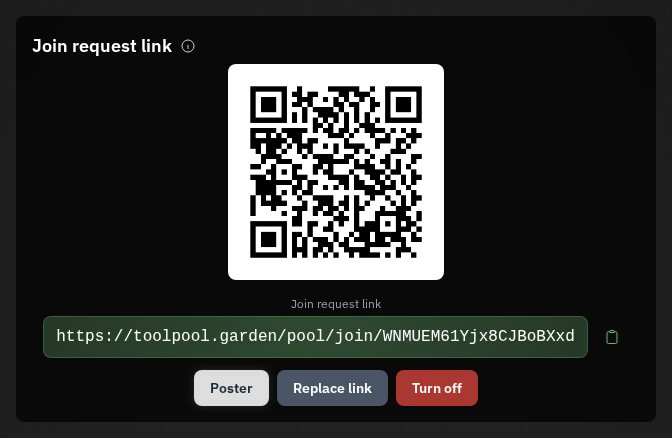
Copy the link and post it wherever your people already talk. There's a QR code above it, and Poster makes a printable page with that QR code on it.
 Open the full-size image
- Someone who opens the link asks to join with their email address. They might get an email first to check the address is theirs.
-
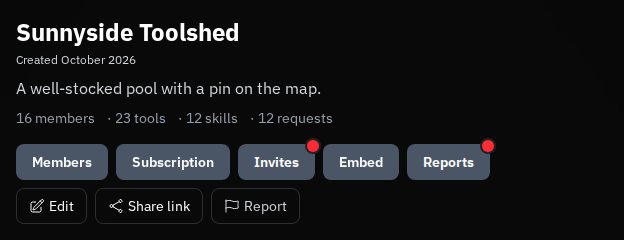
When someone asks to join, a red dot shows up on the top right corner of the Invites button on your pool's page. There's no email about it, so that dot is how you'll know.
 Open the full-size image
On My Tool Pools, the pool's card also gets an orange dot and says how many join requests are waiting. That's handy if you run more than one pool.
 Open the full-size image
-
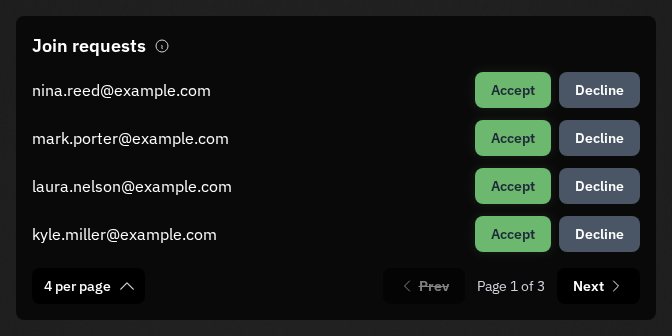
Open Invites, find them under Join requests, and press Accept or Decline. Accept works the same as typing their address in yourself. Decline just deletes the request, and they don't get an email about it.
 Open the full-size image
If the link ends up somewhere you didn't mean it to go, press Replace link, and the old link and QR code stop working straight away. Turn off does the same without making a new one.
Invite a whole list with AI
If your people are already in a spreadsheet, a mailing list export or an old sign-up sheet, a connected AI assistant can send every invite for you. It shows you the whole list first and waits for you to say go.
Warning: Each invite is a real email, and it goes out the moment the assistant sends it, so only invite people who'd expect to hear from your group. Somebody who already has an account joins right away, and you'd have to remove them from Members. You can cancel any other invite until the person accepts it.
-
Connect your assistant to ToolPool.Garden if you haven't yet. Each of these walks you through connecting it.
- Connect Claude to ToolPool.Garden
- Connect ChatGPT to ToolPool.Garden
- Connect Grok to ToolPool.Garden
Already know where it goes? Here's the address.
https://toolpool.garden/mcp - Save your list as a CSV or a spreadsheet. It needs a column of email addresses. Names are optional, and if they're there, the invites use them.
- Start a new chat and switch ToolPool.Garden on for it. In Claude that's the + menu, then Connectors. In ChatGPT, click +, type ToolPool.Garden, and pick it. Grok uses it once it's connected.
-
Paste this prompt, attach your list to the same message, and send it. A short list can go straight into the message under the prompt instead.
I'm sending you a list of people I want to invite into one of my pools on ToolPool.Garden (https://toolpool.garden). It's either a file I've attached or a list pasted below. Please send the invites using the ToolPool.Garden tools. If you don't have those tools, or they need me to sign in, stop and tell me. First, call list_pools. Only an admin of a pool can invite people into it. If I'm not an admin of any pool, stop and tell me that. Otherwise, show me the names of the pools I'm an admin of and ask which one to use. If that pool is marked closed, tell me that people can still join it, but they won't see any listings until it's open again. Read the whole list. Find the email address in each row. If there are first and last name columns, use them for first_name and last_name. If there's a single name column, split it only when it's plainly a first and a last name, and otherwise leave the names out. Never guess a name from an email address. Skip a row with no email address, or with one that isn't a whole address. Never change or correct an address, even when it looks like a typo: put it with the rows you're skipping. If a row has more than one address, put it there too and ask me what to do. Invite each address once, even when it's on the list twice in different capital letters. If I tell you that some people were already invited, skip them as well. Before you invite anyone, show me how many people you'll invite, then the full list with each name and address, then every row you're skipping and why. If the pool's member count plus the people you'll invite is more than 20, tell me that a pool with more than 20 members needs a card and a monthly fee if it doesn't already have one, and give me https://toolpool.garden/pricing. Wait for me to say go, and make any changes I ask for. When I say go, call invite_to_pool once for each person. If one fails because of a name, try it once more without the names. If one fails for another reason, note why and carry on with the rest. If you have to stop before the end, tell me exactly who you didn't get to, so I can carry on in a new chat without inviting anyone twice. When you're done, tell me: - who was added to the pool straight away (added_to_pool), because they already had an account - who was sent an invitation email (invitation_emailed) - whose invite failed, and why, in plain words. Someone who's already in the pool shows up here, and that's fine. If a call is refused because my account has a document to sign, stop and give me the link it names. Never cancel an invite unless I ask you to.
- It asks which pool to use, then shows you everyone it's going to invite and every row it's skipping. Read it before you say go.
- When it's done, it tells you who joined straight away and who was sent an invitation! The invitations are on your pool's Invites page too.
Notes
A pool with more than 20 members needs a card for a flat monthly fee. A big list can push you past that, so look at Pricing before you invite everyone. If nobody adds the card in time, the pool's listings are hidden and its join link stops taking requests. Pricing
Sending the same list again emails everyone who hasn't joined yet a second time. Take the people who were already invited off the list first, or tell the assistant who they are.
A long list uses up more of your plan's allowance. For a big one, split it into a few files and start a new chat for each.
To cut the assistant off, open the Apps page in User Settings and press Disconnect beside it under Connected apps. It stops working straight away. User Settings
This tutorial was last updated on October 2026. If this isn't making sense anymore, please let us know at [email protected] and we'll try to update things as soon as possible.